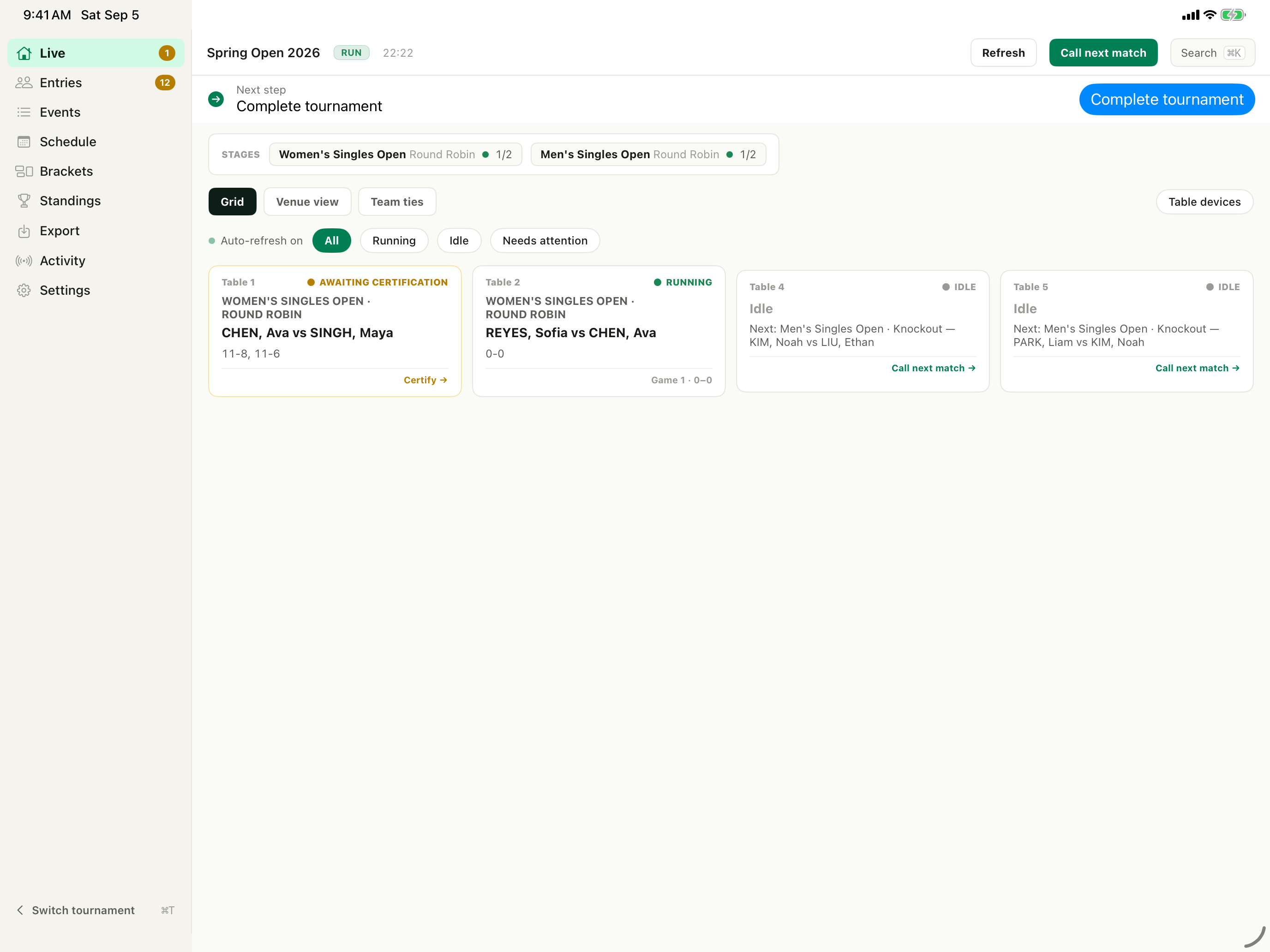
Tournament header · next stepCurrent first-party product capture · synthetic fixture data
CCOpen Live and confirm the active tournament. Read the lifecycle pill and the next-step ribbon, and verify that auto-refresh is on before directing the floor.
01
Confirm the active competition
Open Live console and confirm the tournament
The Live view opens on the tournament header — name, lifecycle pill, and clock — above the next-step ribbon, the stage strip, and the table board.
The Live view opens on the tournament header — name, lifecycle pill, and clock — above the next-step ribbon, the stage strip, and the table board.
Tournament header · next stepCurrent first-party product capture · synthetic fixture data
2
Choose the right queue
Filter Running or Needs attention
Use the filters instead of scanning every card. Needs attention is the exception queue for the desk, and Idle shows the tables that are free.
All · Running · Idle · Needs attentionCurrent first-party product capture · synthetic fixture data
3
Check the table number
Assign a real table before calling the match
The board is table-keyed — one card per physical table — so a match with no table has no cell to live in. Assign tables on the Schedule tab before you call players.
An idle table card names the match queued for it and offers Call next match. Confirm both players and the event on the card before actioning it.
Table 4 · Call next matchCurrent first-party product capture · synthetic fixture data
5
Record the honest outcome
Submit the winner and game scores
The result sheet offers four outcome chips — Played, Walkover, Retired, and DQ. Pick the one that actually happened instead of inventing numeric scores for a match that was not played out.
Certification locks the result and feeds standings. If a submitted score is wrong, record it as not approved at certification so it cannot advance, then re-submit the corrected result.